


MagicBIN 2
Build your EPROMs
Load the files .bin, .rom, .hex, arrange them in any order you like and instantly see where they end up And how much space they take in the EPROM. You check the contents with the hex editor and the character ROM viewer, then create the file to burn with the programmer: even split even/odd for two EPROMs in parallel.

Choose your system
A single file, no installation and no .NET Framework: unzip and run. Projects open the same on every system.
Windows
Windows 10 / 11, 64-bit. Uses WebView2, already present on the system.
▼ Download for WindowsmacOS
Universal app for Intel Macs and Apple Silicon (M1/M2/M3/M4), macOS 10.13 or later.
▼ Download for macOSLinux
64-bit PCs (x64) and 64-bit ARM (Raspberry Pi 4/5). Requires WebKitGTK.
▼ Download for LinuxStill need the old version for Windows 7 (.NET Framework 4.8)? Download MagicBIN 1.0.0.1.
Everything you need
to burn an EPROM
All EPROMs
From the 2708 to the 27C080, 28C EEPROMs and 39SF Flash. The 27C400/800/160/320 are marked as usable in 8 or 16-bit mode; 16-bit EPROMs warn you that don't work on 8-bit systems.
Drag and reorder
Drag the files into the window and reorder them by dragging the rows. Reads .bin, .rom, .img, Intel .hex, Motorola .s19 and C64 cartridges .crt.
Graphical map
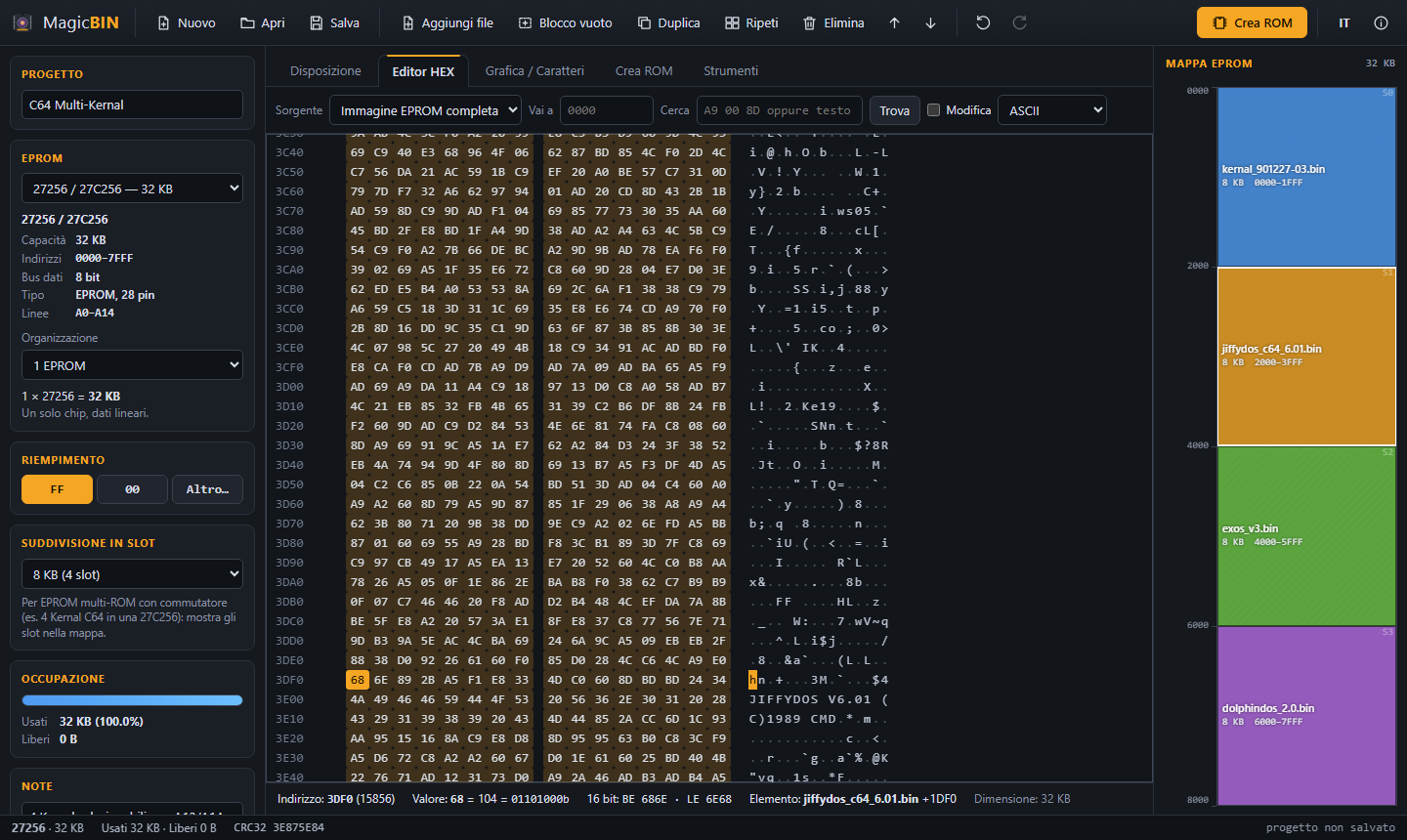
See at a glance where each file sits, the free space, overlaps and what overflows the EPROM. With slot see multi-ROMs with a switch (e.g. 4 C64 Kernals).
Precise addresses
Fixed address, 1K…1M alignment, empty blocks of a given size or “up to address”, e Repeat to fill the EPROM with copies of the same ROM.
FF / 00 fill
Unused space is filled with FF (blank EPROM), 00 or a value of your choice, even a different one for each empty block.
Hex editor
Edit bytes, search for sequences or text, choose ASCII, PETSCII, ZX or ATASCII. It tells you which file and which chip each byte ends up.
Character and graphics ROMs
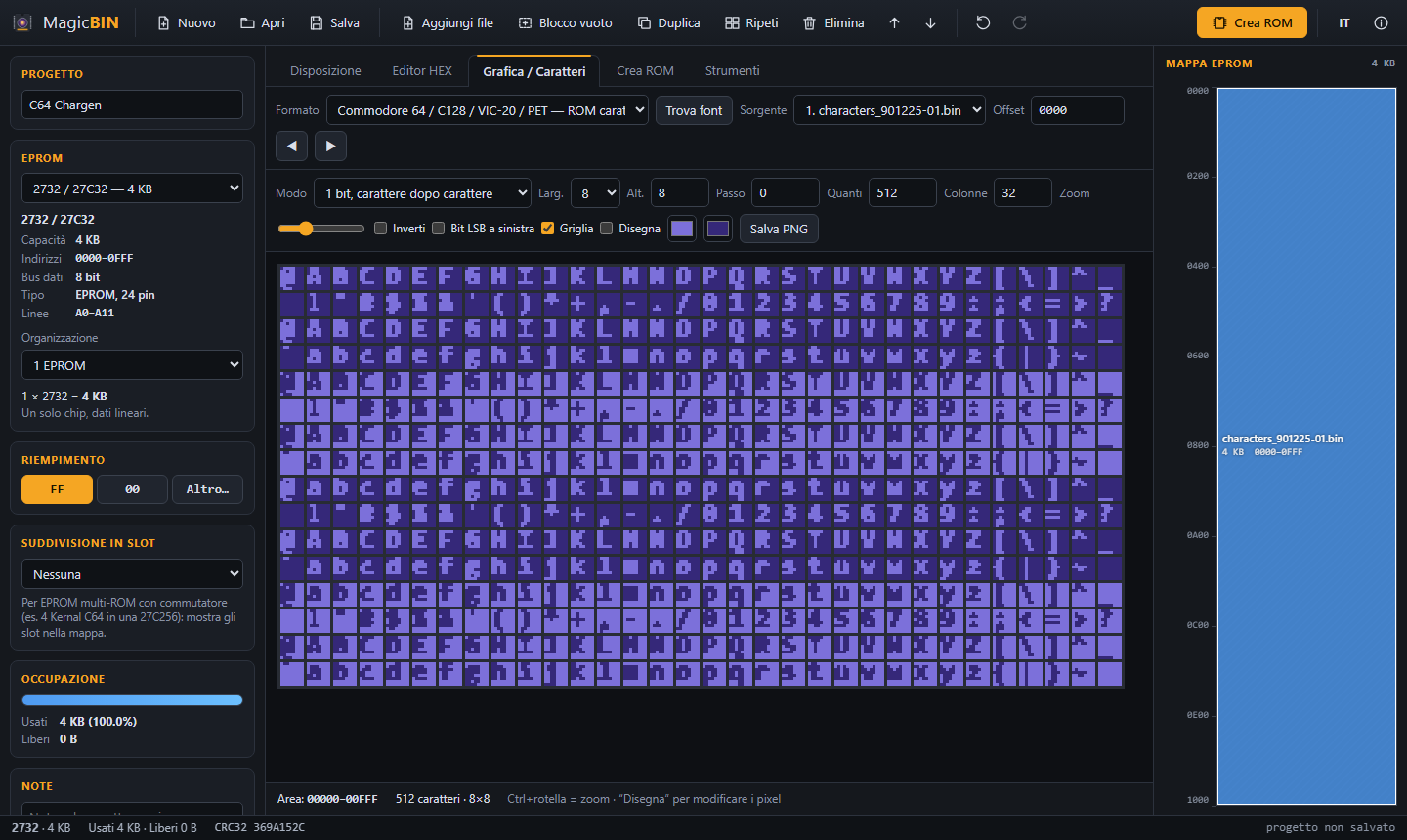
View and redraw the fonts of the C64/VIC-20/C128, ZX Spectrum, ZX81, Atari 8-bit and ST, Amstrad CPC, MSX, BBC, PC, Apple II, NES tiles and Game Boy. With “Find font” finds them on its own.
Even / odd and multi-chip
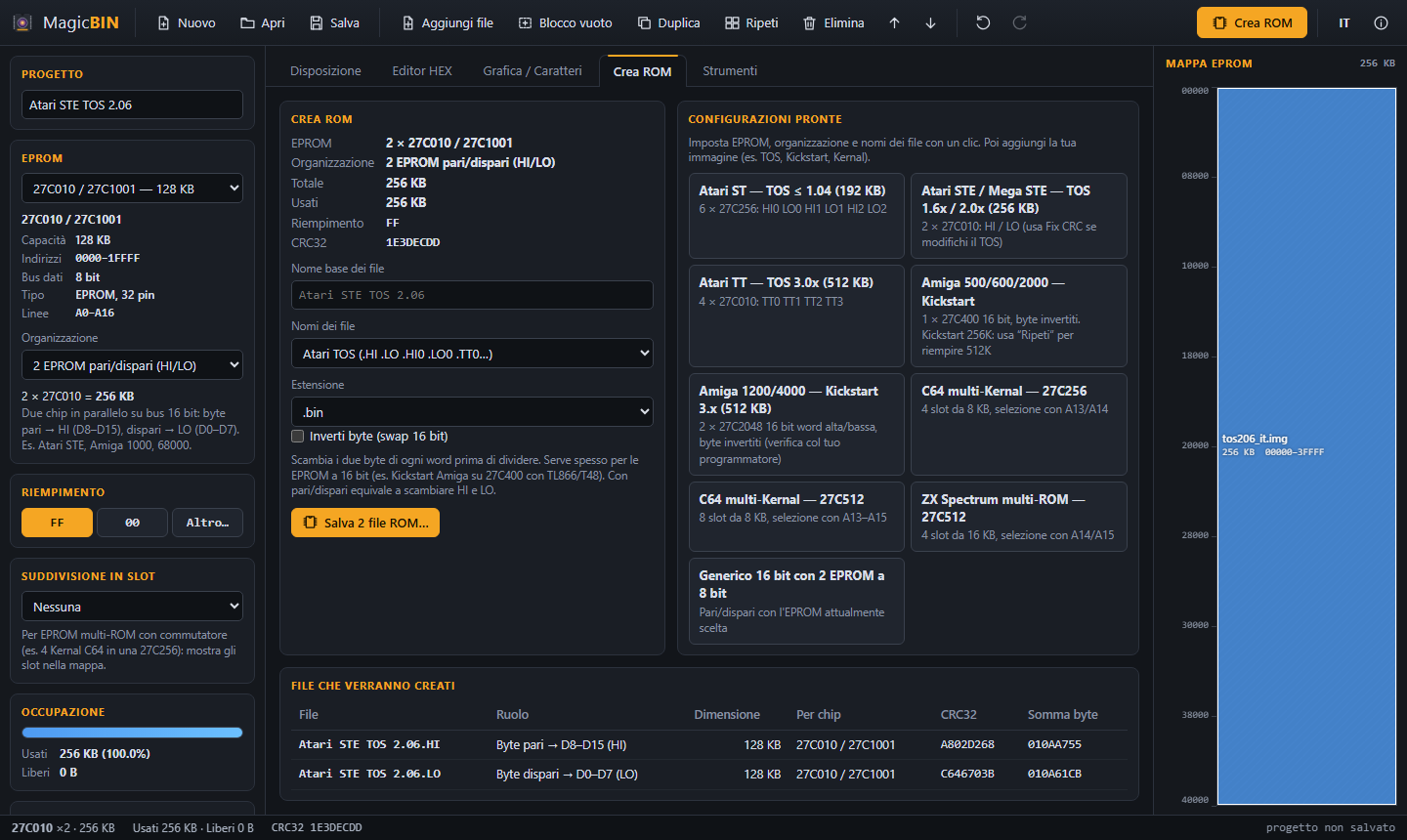
Split the ROM for 2 HI/LO EPROMs, 4 EPROMs (Atari TT), 2 16-bit EPROMs (Amiga), sequential banks, or the the 6 chips of TOS 1.04. With byte swapping for programmers.
TOS CRC fix and Kickstart
Recalculate the TOS 2.06 CRC after a patch (without a working Atari) and the checksum of the Amiga Kickstart. It also merges dumps of separate EPROMs.
Ready-made configurations
One click for Atari ST/STE/TT, Amiga 500 and 1200, C64 multi-Kernal on 27C256/27C512, ZX Spectrum multi-ROM.
Projects that don't get lost
The project .mbproj also saves the file data: you can reopen it even if the originals have since been moved or deleted.
Undo, CRC, checksum
Unlimited undo/redo, CRC32 and byte sum (like the TL866/T48 programmers) for every file and every EPROM to be burned.
A look inside

From ROM to EPROM
in 6 steps
Choose the EPROM
In the left-hand column choose the chip (e.g. 27C256). If you use several chips together, choose the organisation: 2 even/odd EPROMs (HI/LO), 4 byte-wide EPROMs, sequential banks… The total capacity updates automatically.
Add the files
Drag them into the window or use Add files (Ctrl+THE). They are placed one after another: reorder them by dragging the rows or with the arrows (Alt+↑/↓).
Arrange the addresses
Select a file and in its properties choose Fixed address or Align to. To leave a gap use Empty block, also “up to address” 4000. Addresses are entered in hexadecimal. For multi-ROMs, enable the slot (es. 8 KB).
Check the contents
Double-clicking a file (or the map) opens the HEX editor. In the Graphics / Characters tab choose the format (C64, Spectrum, Atari…) or press Find font.
Fill and checks
Choose FF or 00 for the free space. Red rows go beyond the EPROM, orange ones overlap. If you have patched a TOS 2.06, use Tools → Fix CRC.
Create the ROM and save the project
Press Build ROM (Ctrl+And): you see the list of files that will be created and save them to a folder. Save the project with Ctrl+S.: the data is stored inside it too.
First launch
Windows
- Unzip magicbin_windows.zip and run MagicBIN.exe.
- If SmartScreen warns you: More info → Run anyway.
macOS
- Unzip and copy MagicBIN.app to Applications.
- The app is not signed by Apple: the first time right-click → Open, or:
Linux
- On Debian/Ubuntu/Raspberry Pi OS you need WebKitGTK.
Da 1 KB a 4 MB
| BUS | CHIP | NOTE |
|---|---|---|
| 8 bit | 2708271625322732276427128272562751227C01027C02027C04027C080 | Warnings for the 2532 (pinout different from the 2732) and for 2364s that need replacing with a 2764 + adapter. |
| EEPROM / Flash | 28C1628C6428C256W27C51228C01039SF01039SF02039SF040 | Rewritable without a UV lamp. |
| 8 / 16 bit | 27C40027C80027C16027C320 | They work in 8-bit mode with the BYTE pin tied to ground (an adapter is needed): great for multi-ROMs. |
| 16-bit | 27C102427C204827C409627C322 | Not compatible with 8-bit systems. For Amiga, Atari, arcade. “Swap bytes” option for programmers that require it. |
Versions
Happy burning!
MagicBIN is free. If you find it useful you can support us by subscribing to the YouTube channel. Problems or ideas? Write to us from the contact page.