LET’S INSTALL THE FIRMWARE UPDATE THAT LETS THE CONTROLLER COMMUNICATE VIA BLUETOOTH INSTEAD OF WI-FI!
As is well known, on 18 January 2023 Google pulled the plug on the Stadia project, refunding its users for their purchases and effectively giving away the controller in question too.
With the stock firmware the controller communicated via Wi-Fi, but after the shutdown the developers decided to release a new firmware enabling Bluetooth communication, so that it can be used with other devices equipped with this now widespread wireless technology.
The process is irreversible: once “converted” to Bluetooth you won’t be able to restore Wi-Fi mode, but you’ll still be able to use the wired connection with a Type-C cable.
During the procedure it may happen that the Chrome browser, the tool through which the whole process is carried out, doesn’t display the steps to follow correctly (most of the time because you’re using an outdated version of the browser or an equally outdated operating system such as Windows 7); if you find yourself in this unfortunate situation, you can follow the tutorial dedicated to overcoming this problem on our YouTube channel.
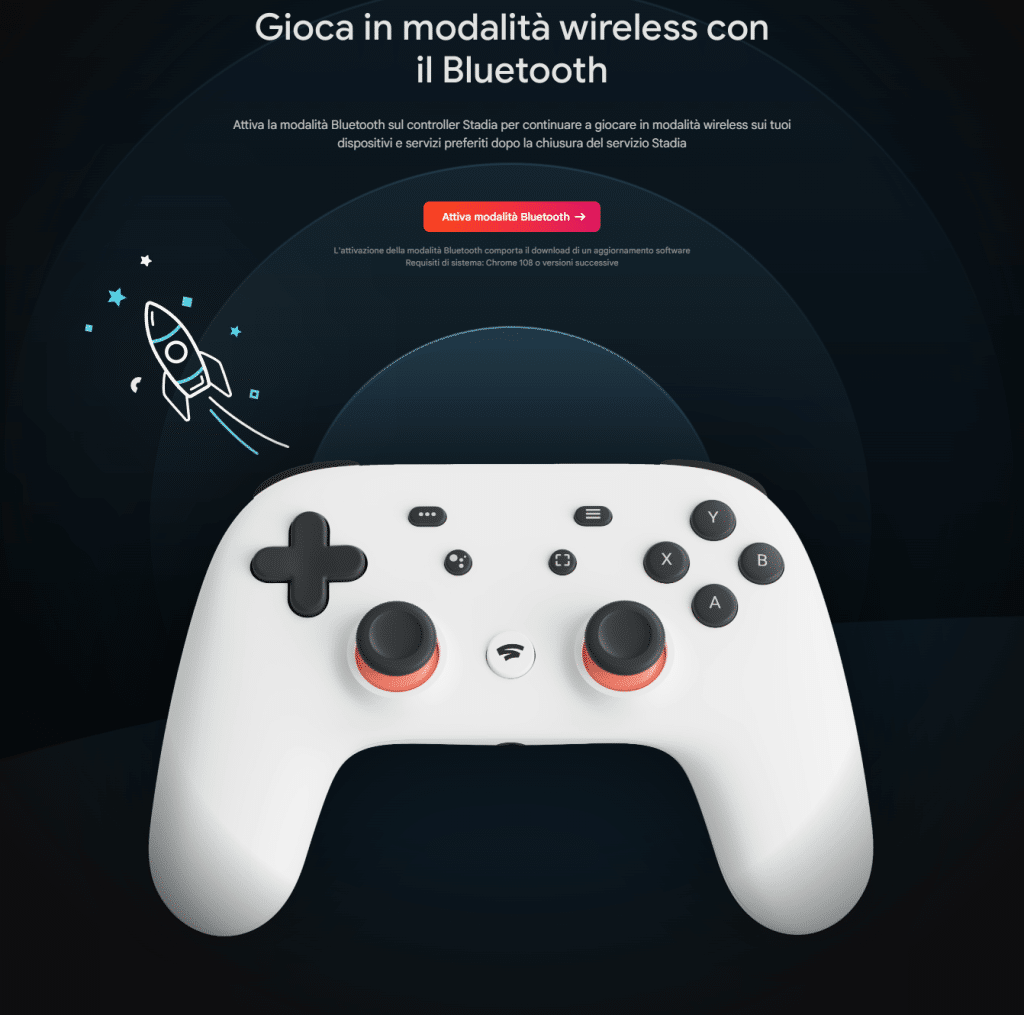
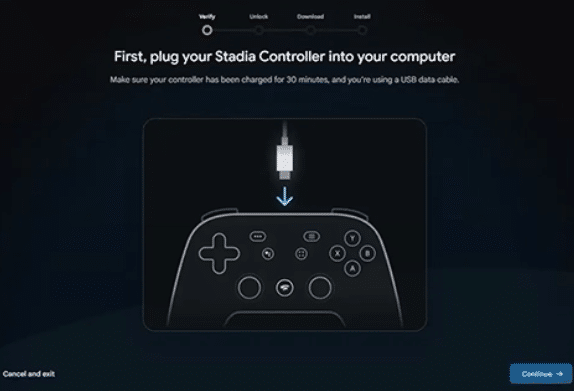
Connect the controller to the PC with a Type-C data cable (not a charge-only one) and select “start” in the section of the page for “Switch to Bluetooth mode” on the left (if it’s the first time you’ve connected the controller to the PC, the drivers will be installed)
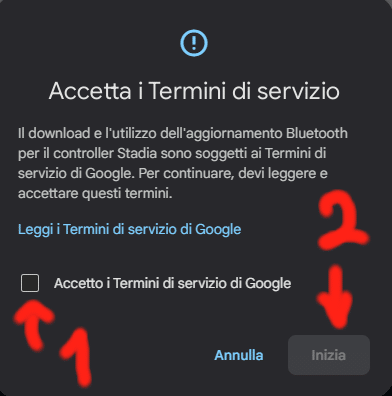
Accept the terms of service and press the “Start” button in the small pop-up that appears
Now, pressing the “Continue” button at the bottom right…
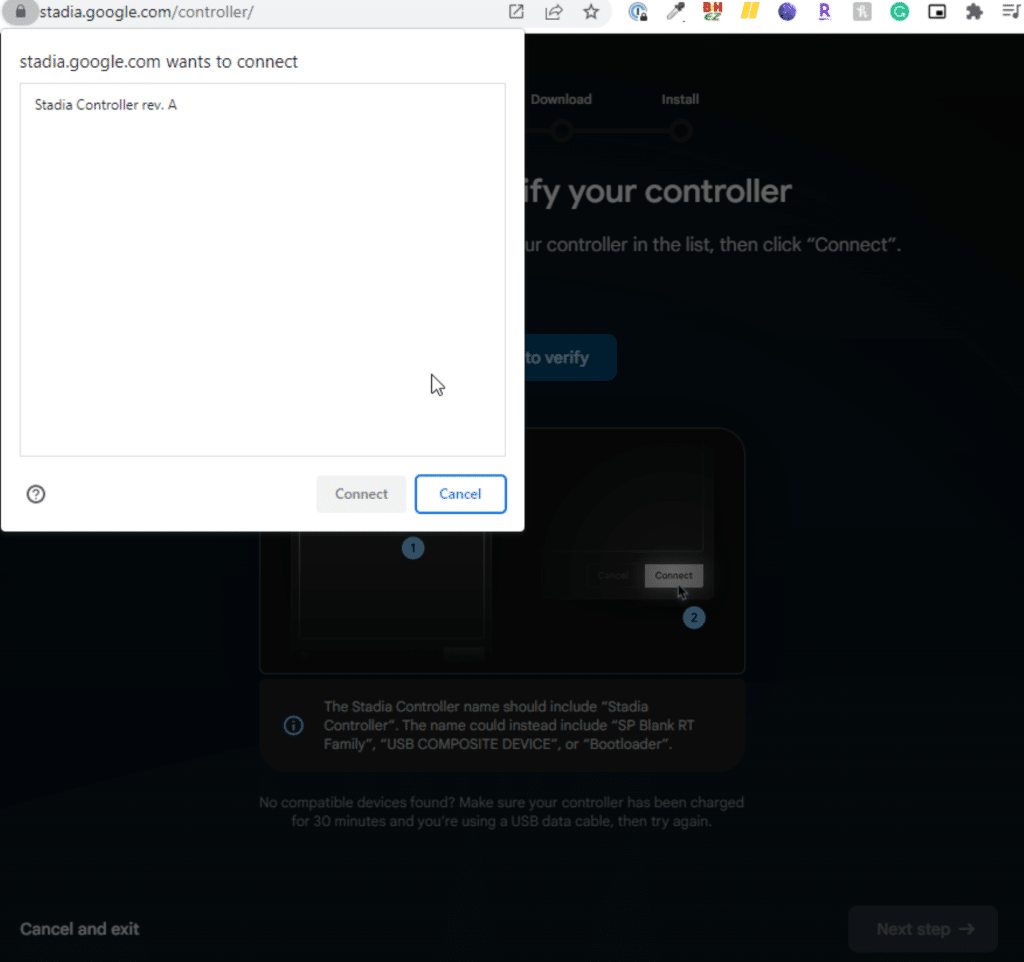
… a pop-up will appear at the top left, where you need to select “Stadia Controller rev. A” and then press the “Connect” button
Google says it will verify the controller; so press the “Next step” button at the bottom right…
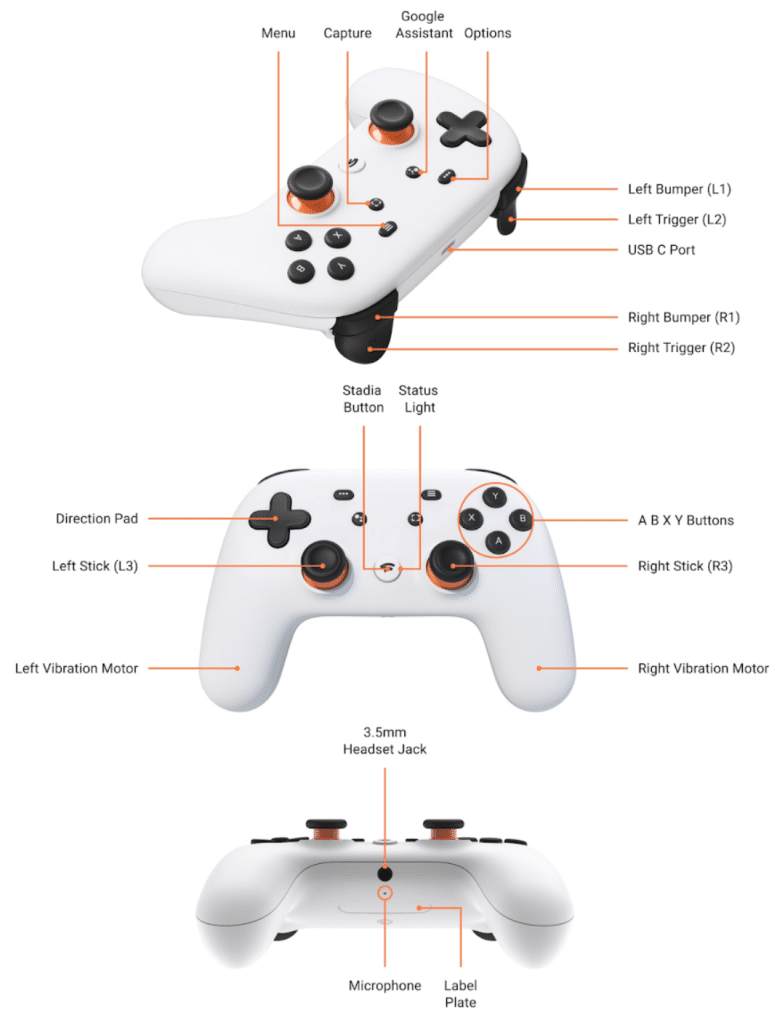
… and you’ll be asked to perform a button “combo” to put the controller into programming mode; to do this we have to DISCONNECT the controller from the PC and, HOLDING DOWN THE ” … “ BUTTON, RECONNECT THE CONTROLLER to the PC (if it has never been connected to the PC in this mode, the drivers will be installed: it doesn’t matter if their installation fails).
Now, with the controller connected, release the ” … ” button and PRESS THE FOLLOWING BUTTONS AT THE SAME TIME: ” … ” + ” Google Assistant ” + ” A ” + ” Y “
to enter Bluetooth programming mode, and finally press the “Next step” button at the bottom right
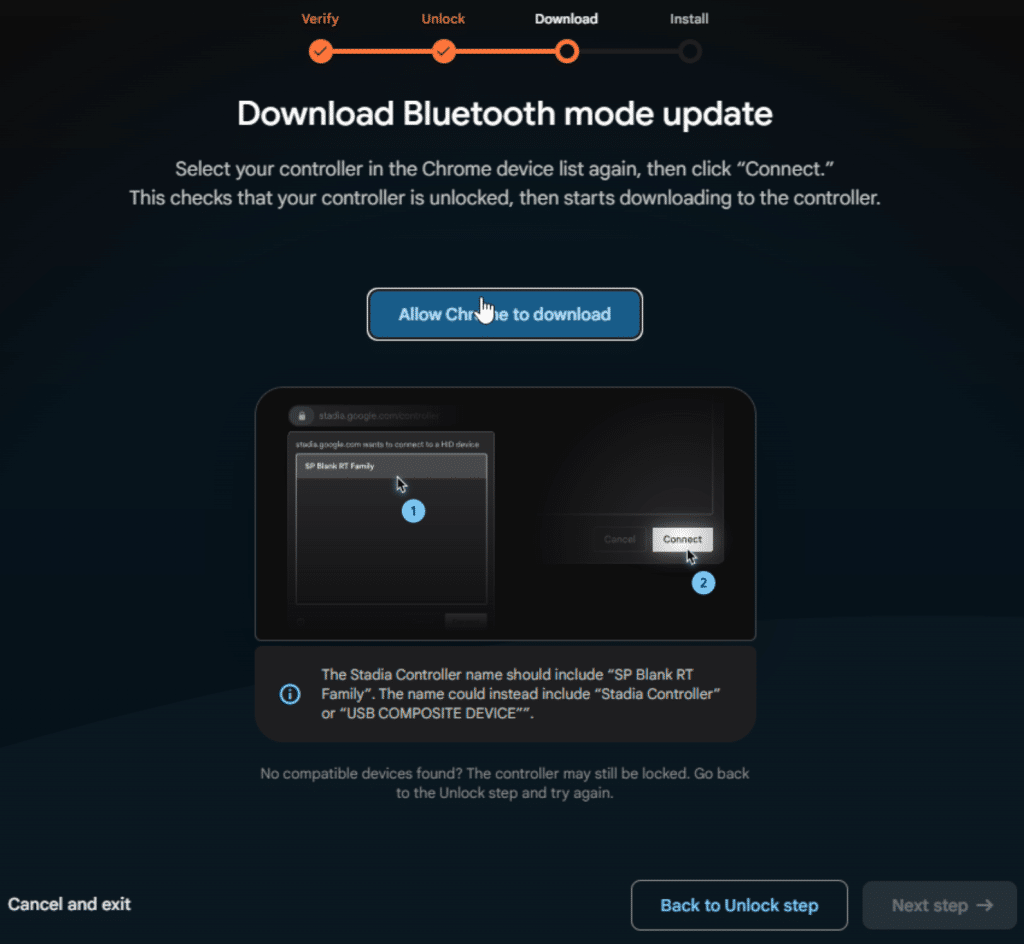
Now press the “Allow Chrome to download” button to bring up a pop-up at the top right…
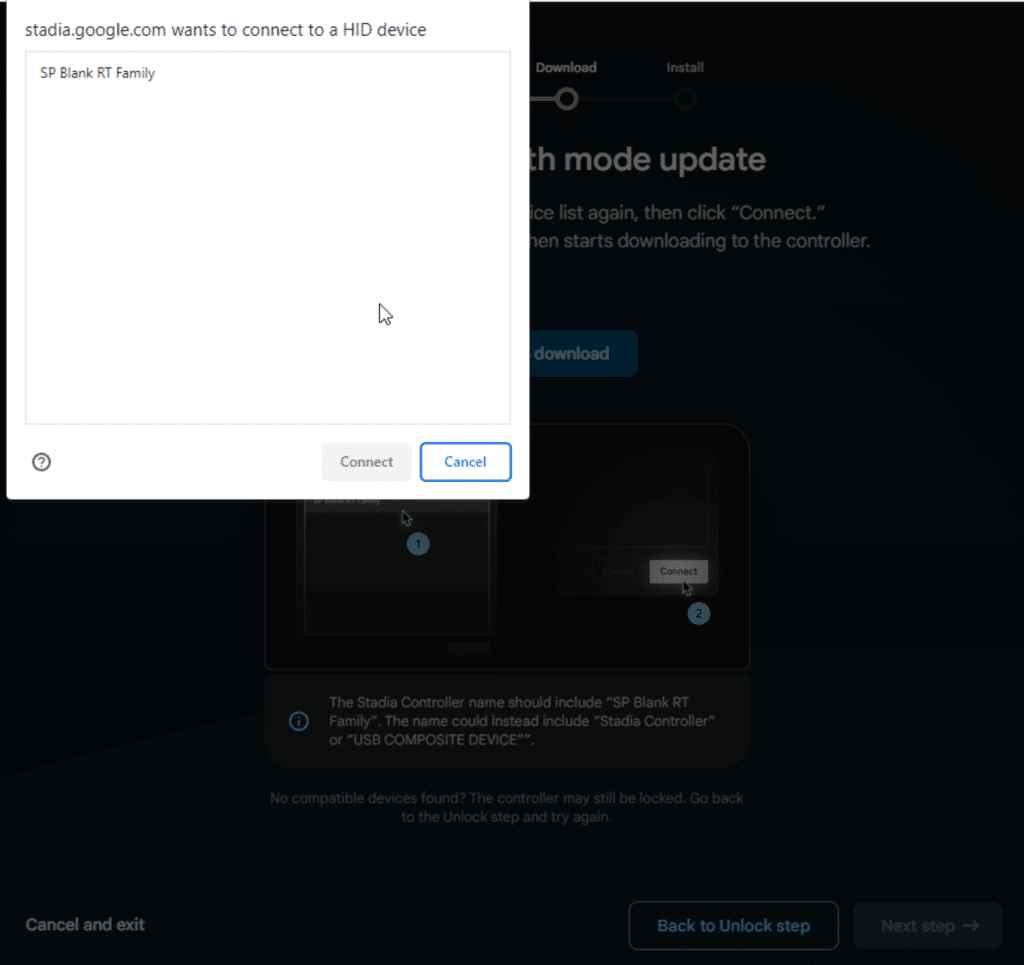
… where you need to select the “SP Blank RT Family” device and press the “Connect” button
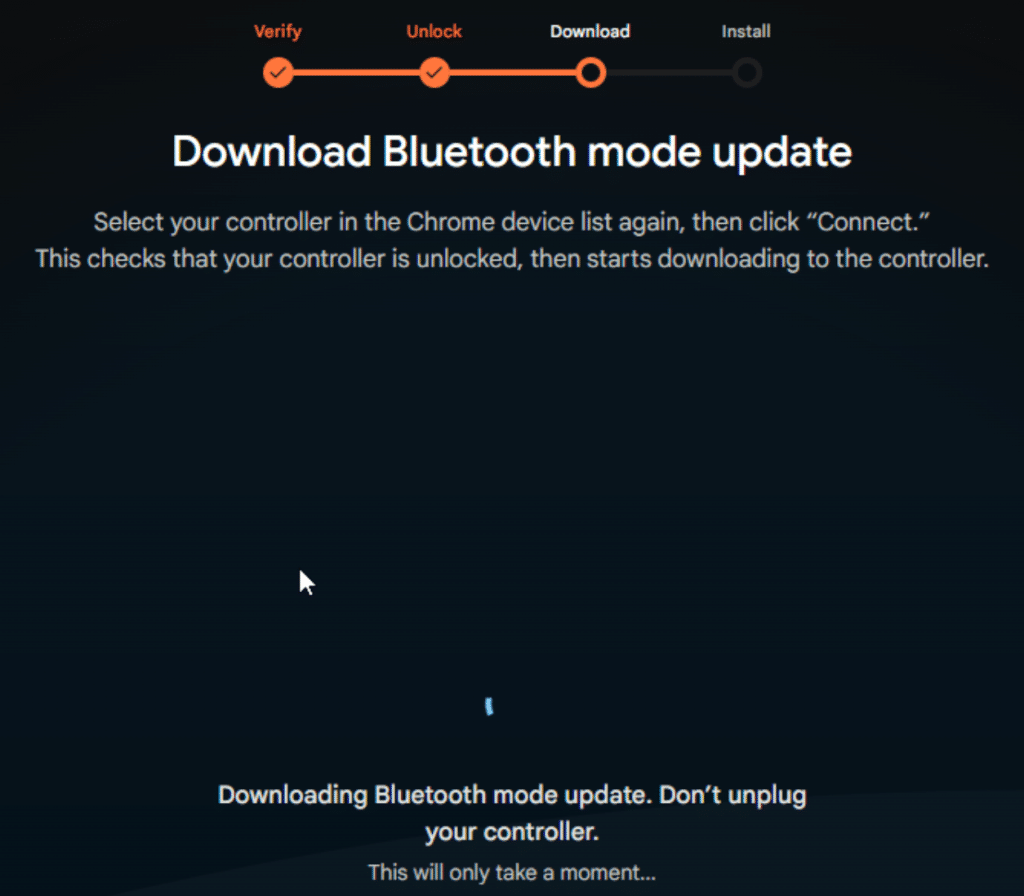
The firmware download will now start
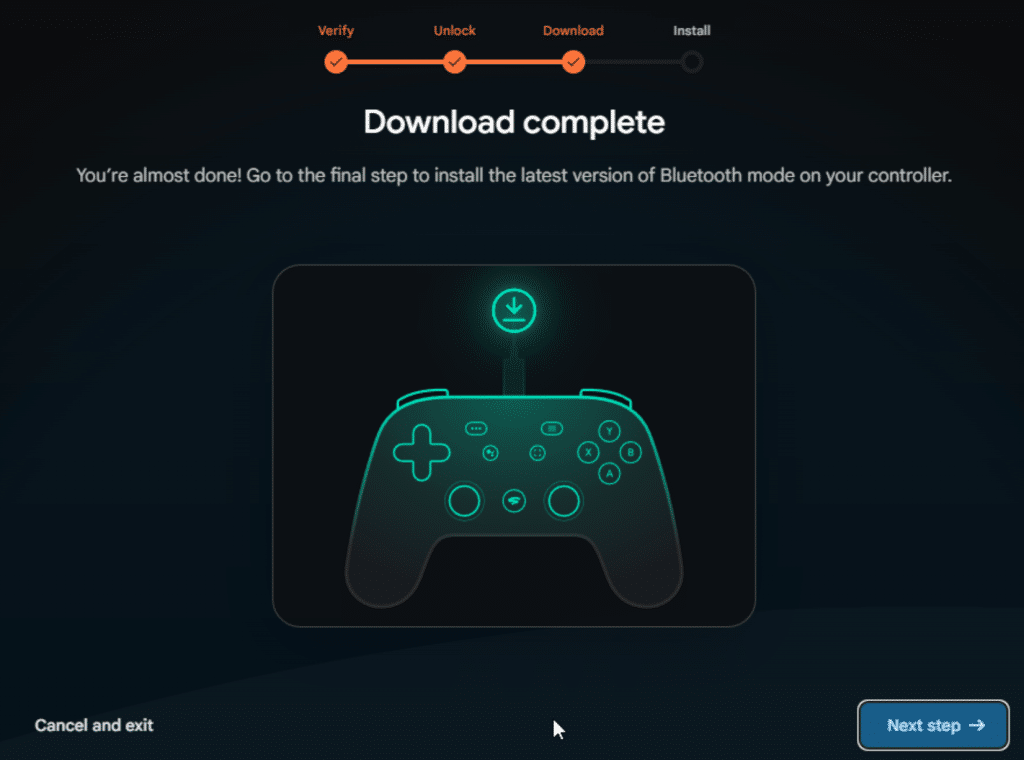
Once the quick download has finished, press the “Next step” button at the bottom right to have the controller verified (again!).
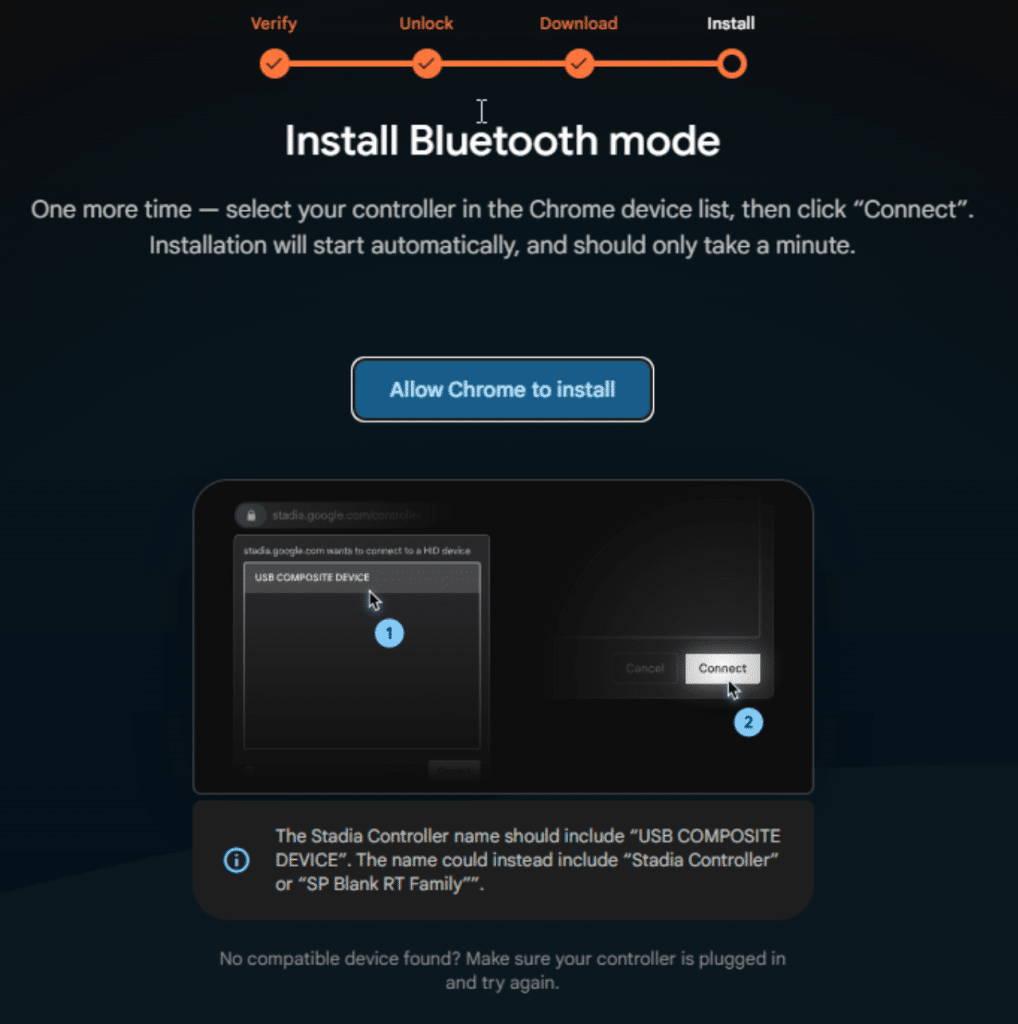
Then press the “Allow Chrome to install” button…
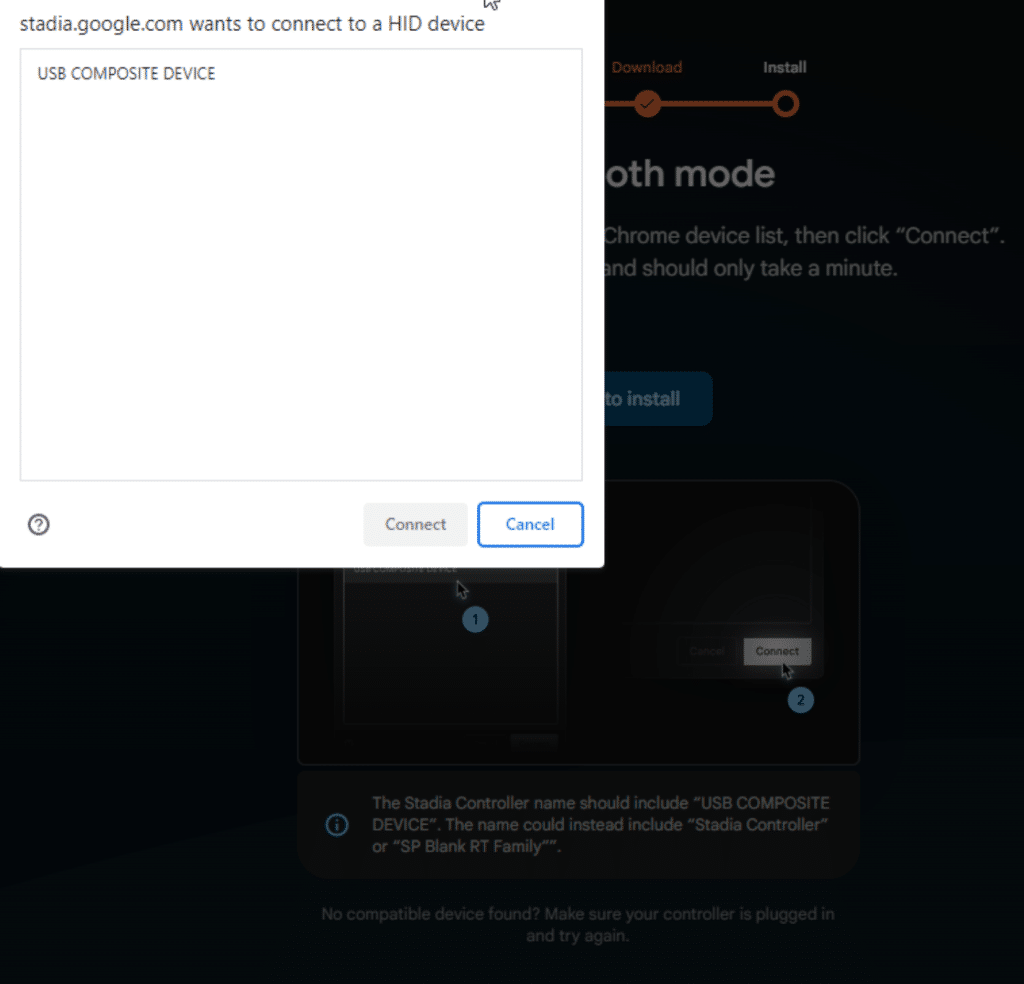
… select “USB COMPOSITE DEVICE” from the list of devices in the pop-up that appears at the top left and press the “Connect” button
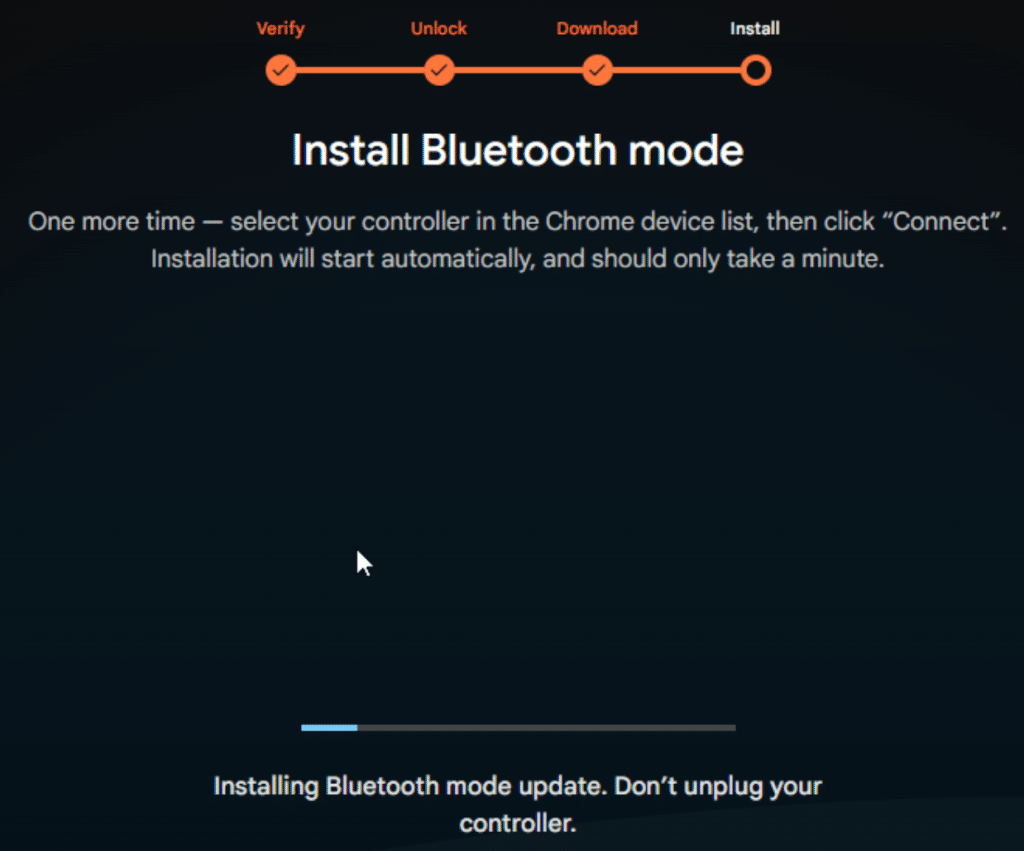
At last the firmware update procedure will start!
HOW TO PAIR
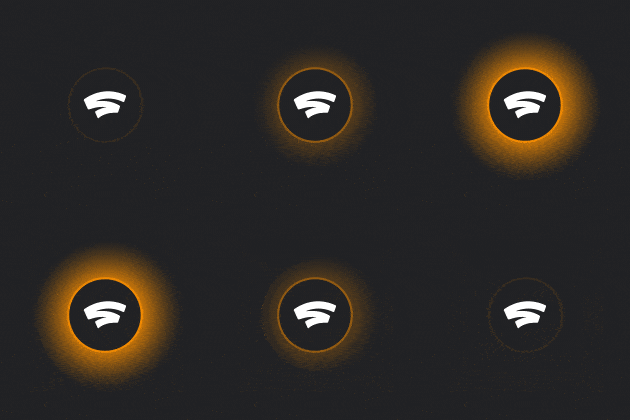
Once the new firmware is installed, to pair with other devices press the ” Stadia ” + ” Y ” buttons for a few seconds: the controller LED will start flashing ORANGE and it will show up as ” StadiaXXXX-YYYY ” (no password needed to connect)
MEANING OF THE CONTROLLER LIGHTS
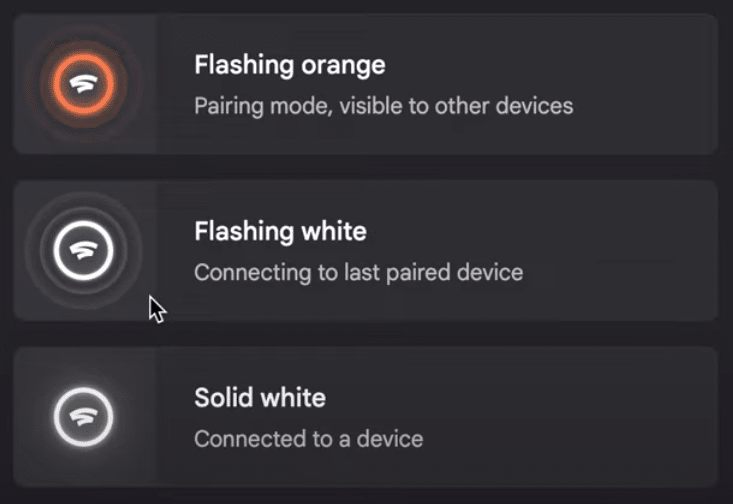
Here’s a quick little chart summarising the meaning of the controller LED’s various light modes. There’s also “solid orange”, meaning the device is charging; once charging is complete the LED switches off by itself (note that a full charge can take more than 4 hours).